Table of Contents
Have you ever wanted to create your own Android or iPhone app but stopped because you did not know how to code? Traditional app development can involve programming languages, development tools, testing environments, servers, and publishing requirements.
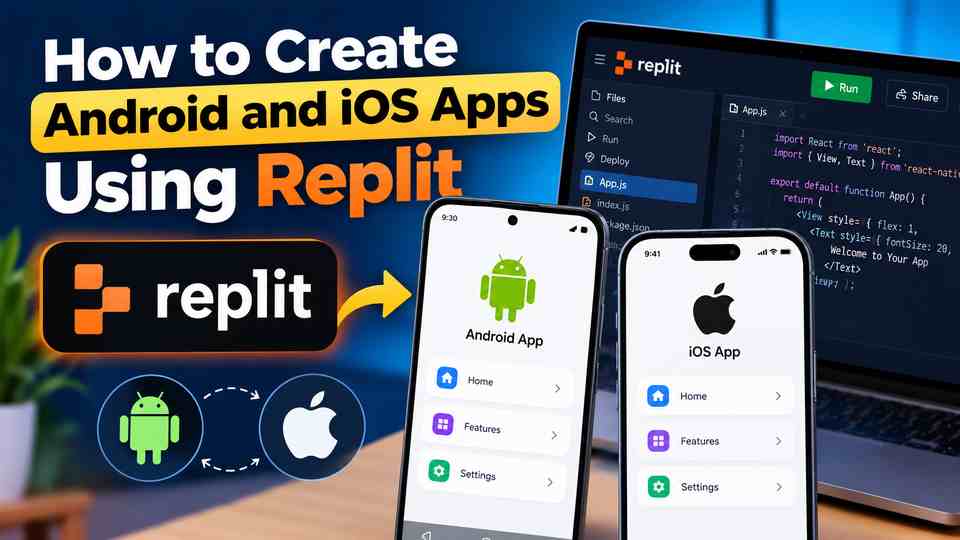
Replit offers a simpler way to get started. Its AI-powered development environment lets you describe an app in ordinary language and work with an AI agent to build the code, design screens, and implement features. Replit’s mobile app workflow uses React Native and Expo to create apps for mobile devices.
Ready to get started? Get started with Replit and explore how AI can help you build Android and iOS applications. This article contains an affiliate link. We may earn a commission if you sign up through it, at no additional cost to you.
In this guide, you will learn how to create Android and iOS apps using Replit, from your first prompt to testing and publishing.
Table of Contents
- What Is Replit AI?
- Can Replit Create Android and iOS Apps?
- What Do You Need Before Starting?
- Step 1: Create a Replit Account
- Step 2: Plan Your Mobile App
- Step 3: Build Your App With Replit AI
- Step 4: Design the App Interface
- Step 5: Add Features and a Database
- Step 6: Test the App on Your Phone
- Step 7: Prepare the Android Version
- Step 8: Prepare the iOS Version
- Step 9: Publish Your App
- Useful Replit AI Prompts
- Common Mistakes to Avoid
- Frequently Asked Questions
- Conclusion
What Is Replit AI?
Replit is an online development platform where you can create, edit, test, and deploy software projects. Its AI agent helps turn written instructions into code, which can be useful for people who are new to programming.
Instead of writing every line of code yourself, you can explain what you want the app to do. Replit can help create the initial project and make changes based on your feedback. Possible projects include a fitness tracker, an Islamic prayer-times app, a personal finance tool, a shopping app, or a simple mobile game.
Depending on your project, you can also develop authentication, database connections, API integrations, and server-side functionality.
Official resource: Replit Mobile Apps.
Can Replit Create Android and iOS Apps?
Yes. Replit’s mobile development workflow uses React Native and Expo, which allow developers to build mobile applications from a shared codebase. Much of the interface and application logic can be shared between Android and iOS, although some features may need platform-specific adjustments.
| Feature | Android | iOS |
|---|---|---|
| Build using Replit AI | Yes | Yes |
| Shared React Native codebase | Yes | Yes |
| Preview on a physical phone | Supported | Supported |
| Publishing | Requires a suitable release build and Google Play submission | Requires a suitable release build and App Store submission |
| Developer account | Google Play Console | Apple Developer Program |
Important: Replit’s tools and publishing workflow can change. A guided iOS publishing workflow does not mean every Android project can be uploaded directly to Google Play with one click. Confirm the current build and export options for your project before choosing a publishing method.
What Do You Need Before Starting?
You do not need to install a complete Android or iOS development environment just to begin experimenting with Replit. Prepare the following:
- A computer with a modern web browser.
- A Replit account.
- A clear description of your app idea.
- An Android phone, iPhone, or both for testing.
- An internet connection.
- Developer accounts when you are ready to publish.
- Any API credentials, icons, images, or content your app requires.
Decide whether your project needs a backend. A simple calculator may work without one, while an app with user accounts, cloud synchronisation, subscriptions, or shared records will generally need additional services.
Step 1: Create a Replit Account
Visit Replit and create an account or sign in. Open the workspace and look for the option to create a mobile app. The exact labels and interface may change as Replit updates its tools.
Choose a mobile app project rather than a standard website if you want a genuine mobile application. A responsive website can look good on a phone, but it is not automatically the same as an installable Android or iOS app.
Step 2: Plan Your Mobile App
Before asking AI to generate code, decide what your app should accomplish. Imagine you want to create a daily habit tracker. You might need a home screen, a list of habits, a progress indicator, reminders, and a settings page.
A useful starting plan includes:
- App name: What will users see on their phones?
- Purpose: What problem does the app solve?
- Target users: Who is the app for?
- Main screens: What pages will users navigate between?
- Core features: What should each screen do?
- Data storage: Should information stay on the phone or sync online?
- Design: What colours, typography, and visual style should the app use?
Start with a small, clearly defined version. Test it before adding more complicated features.
Step 3: Build Your App With Replit AI
Open Replit Agent and explain the app you want to create. Be specific about screens, navigation, functionality, and technology requirements. Instead of simply writing “Make me a fitness app,” describe the daily workout plan, exercise library, progress tracking, and how information should be saved.
Example Prompt for Replit AI
Create a new mobile application using React Native and Expo. The app should run on Android and iOS from a shared codebase.
Build a fitness tracker with a home screen showing today’s activity, a daily workout list with exercise instructions, a progress screen showing completed workouts, and a settings screen for user preferences. Use a simple, consistent navigation system and a responsive interface suitable for small phone screens. Store completed activities persistently so they are not lost when the app closes.
Use reusable components and maintain a clear project structure. Do not create buttons that appear functional but do nothing. Test the main user flows and fix errors before considering the first version complete.
This gives the AI enough detail to establish a useful first version. Once Replit generates the project, run it and review the result. Do not assume the first output is ready for release. Ask the agent to correct specific problems and verify the fixes.
Step 4: Design the App Interface
A mobile app should be easy to understand on a small screen. Users should not have to search for basic actions or navigate through unnecessary menus. Review each screen on an actual phone and pay attention to:
- Text size and readability.
- Button placement and touch targets.
- Spacing between interface elements.
- Navigation consistency.
- Loading indicators and error messages.
- Light and dark mode, if supported.
- Keyboard behaviour on forms.
- Different screen sizes.
Try this focused instruction:
Improve the home screen using a clean, professional mobile design. Keep the existing features and navigation. Use consistent spacing, readable typography, accessible contrast, and clearly labelled buttons. Do not remove working functionality or replace real content with placeholder data.
Step 5: Add Features and a Database
A useful mobile app needs more than attractive screens. Its features must work reliably, and information must be saved in the right place. Replit can help connect your app to backend services and databases when your project requires them.
- User authentication: Let people create accounts, sign in, and manage profiles.
- Database storage: Save workout records, notes, settings, or other user-generated information.
- API integrations: Retrieve information from external services.
- Notifications: Send reminders after configuring the required permissions and notification infrastructure.
- Payments: Integrate a suitable provider and follow applicable app-store payment rules.
Implement one major feature at a time. After each change, test the affected screens and confirm existing features still work. Never put private API keys, database passwords, or other secrets directly into public client-side code. Use secure environment variables and appropriate server-side handling.
Step 6: Test the App on Your Phone
Testing is one of the most important parts of mobile development. Replit supports mobile previews through its development workflow, including Expo-based previews. Depending on your setup, you may be able to open a preview directly or scan a QR code to run the app on your phone.
Install Expo Go if your project’s preview instructions require it, then follow the instructions provided by Replit. Test the app as a real user would:
- Open the application.
- Navigate through every main screen.
- Enter sample information.
- Close and reopen the app.
- Check whether saved information remains available.
- Test slow network connections and failed requests.
- Check permissions for features such as camera or location.
- Look for crashes, layout problems, and misleading error messages.
Test on both Android and iOS if you intend to support both. A development preview is not the same as a production release; some native modules, permissions, and platform-specific features may require a separate development or release build.
Step 7: Prepare the Android Version
Once your app is stable, prepare an Android release. Check the application ID, app icon, version information, permissions, signing configuration, and release build settings.
Google Play generally uses an Android App Bundle (AAB) for new app submissions. Your project needs a suitable Android build process to generate the release file. If Replit does not provide the required release build directly for your project, you may need Expo Application Services (EAS) or another compatible build environment.
Before publishing, verify that the app installs and launches correctly, the package name is correct, the release is signed appropriately, only necessary permissions are requested, and privacy disclosures are accurate.
Create a Google Play Console account and follow Google’s current requirements for registration, testing, and production access. First-time personal developer accounts may have additional testing requirements, so check the current rules in Play Console.
Step 8: Prepare the iOS Version
The iOS release process has its own requirements. Replit offers a guided workflow for preparing iOS apps for Apple’s App Store. Depending on your project and the current publishing options, you may be able to prepare a build and move it through Apple’s testing and submission process.
You will need an Apple Developer account to distribute an app through the App Store. Check the bundle identifier, app icon, launch-screen configuration, permissions and privacy descriptions, supported iOS versions, and Apple’s current review guidelines.
Test on a real iPhone wherever possible. If you distribute a test version through TestFlight, invite testers to check the app before submitting the final release. A successful build does not guarantee approval; Apple also reviews functionality, privacy practices, and policy compliance.
Step 9: Publish Your App
Publishing on Google Play
- Create or access your Google Play Console account.
- Register the app and configure its store listing.
- Generate and upload the required signed Android App Bundle.
- Complete content rating, privacy, data safety, and other required declarations.
- Configure the appropriate testing track.
- Resolve warnings or policy issues.
- Submit the release for review and follow the Play Console workflow.
Publishing on the Apple App Store
- Join the Apple Developer Program.
- Prepare the iOS release using the supported build workflow.
- Configure the app in App Store Connect.
- Upload the build and test it through TestFlight if needed.
- Add screenshots, descriptions, privacy details, and other metadata.
- Submit the app for Apple’s review.
- Address any review feedback before release.
You can use the same underlying app concept on both platforms, but each store has its own submission process and requirements.
Useful Replit AI Prompts
1. Create a mobile app
Build a React Native and Expo mobile app for Android and iOS. Start by defining the main screens, navigation, data model, and essential user flows. Implement a working first version with reusable components and clear error handling.
2. Fix bugs
Review the existing mobile app for runtime errors, broken navigation, incorrect state handling, and failed API requests. Identify root causes, fix them without removing existing features, and test the affected user flows.
3. Improve the design
Review the current mobile interface and improve readability, spacing, navigation, accessibility, and consistency. Keep all working functionality and make sure the design works on different phone screen sizes.
4. Prepare for release
Audit this React Native and Expo project for Android and iOS release readiness. Check configuration, dependencies, permissions, environment variables, app identifiers, error handling, and platform-specific issues. Report blockers and fix only verified problems. Do not claim store submission is complete until the release has actually been built and submitted.
5. Review security
Review the app and backend for exposed API keys, insecure authentication, unsafe data access, insufficient input validation, and inappropriate logging of personal information. Report each issue, fix verified vulnerabilities, and explain any manual configuration still required.
Common Mistakes to Avoid
Trying to build everything at once. Start with essential features and add more after the first version works.
Using vague prompts. Clear requirements help Replit understand what you want and make the results easier to verify.
Ignoring real-device testing. A preview can look correct while permissions, keyboard behaviour, or device-specific features fail.
Assuming the AI has tested everything. Run the app and verify important workflows yourself.
Treating a web app as a native mobile app. Choose the correct project type and confirm the actual deliverable before investing time in development.
Forgetting privacy and security. Protect credentials, request only necessary permissions, and provide accurate privacy disclosures.
Expecting automatic approval. Google and Apple apply their own technical and policy requirements, regardless of which tool you use.
Frequently Asked Questions
Can I create an Android app using Replit without coding?
Yes. Replit AI can generate much of the code from written instructions. You should still learn how to test the app, review errors, configure builds, and manage releases.
Can I create an iOS app using Replit on Windows?
You can use Replit’s browser-based workflow on Windows to develop an iOS app. Replit provides a guided iOS publishing workflow, although account setup, testing, and final submission requirements still apply.
Can one Replit project work on Android and iOS?
Yes. React Native and Expo allow much of an app’s code to be shared between the two platforms. Some integrations and interface details may need separate configuration or platform-specific code.
Is Replit free for mobile app development?
Replit’s available features, AI usage, and pricing can change. Check the current Replit pricing page before starting, especially if you expect to build a large application or use AI frequently.
Does Replit automatically publish apps to Google Play?
Do not assume that it does. Google Play publication requires a compliant Android release build and the appropriate Play Console submission steps. Depending on the current Replit workflow, you may need a separate build and upload process.
Do I need a Mac to create an iOS app?
Not necessarily for initial development. Replit’s cloud-based tools can simplify building and preparing iOS apps. Exact requirements depend on your native integrations, testing approach, and release workflow.
Can I create games with Replit?
You can use Replit to develop game projects, including mobile-oriented projects. The best approach depends on the game: a simple puzzle game has different technical needs from a graphics-intensive 3D game.
Is Replit suitable for professional apps?
It can be useful for prototypes, minimum viable products, and production applications. Suitability depends on the app’s complexity, performance requirements, security, cost, integrations, and long-term maintenance needs.
Conclusion
Replit makes it easier to turn a mobile app idea into a working project without starting with advanced programming knowledge. With a clear plan, specific AI prompts, and careful testing, you can develop an application for Android and iOS using a shared React Native and Expo codebase.
The important part is to treat AI as a development assistant rather than a replacement for testing and release preparation. Build the essential features first, verify that they work on real devices, and follow the separate publishing requirements for Google Play and the Apple App Store.
If you are starting your first app, choose one practical idea and build a small, reliable version before expanding it. That approach gives you a better foundation for launching and maintaining a useful mobile application.
Related Articles