Table of Contents
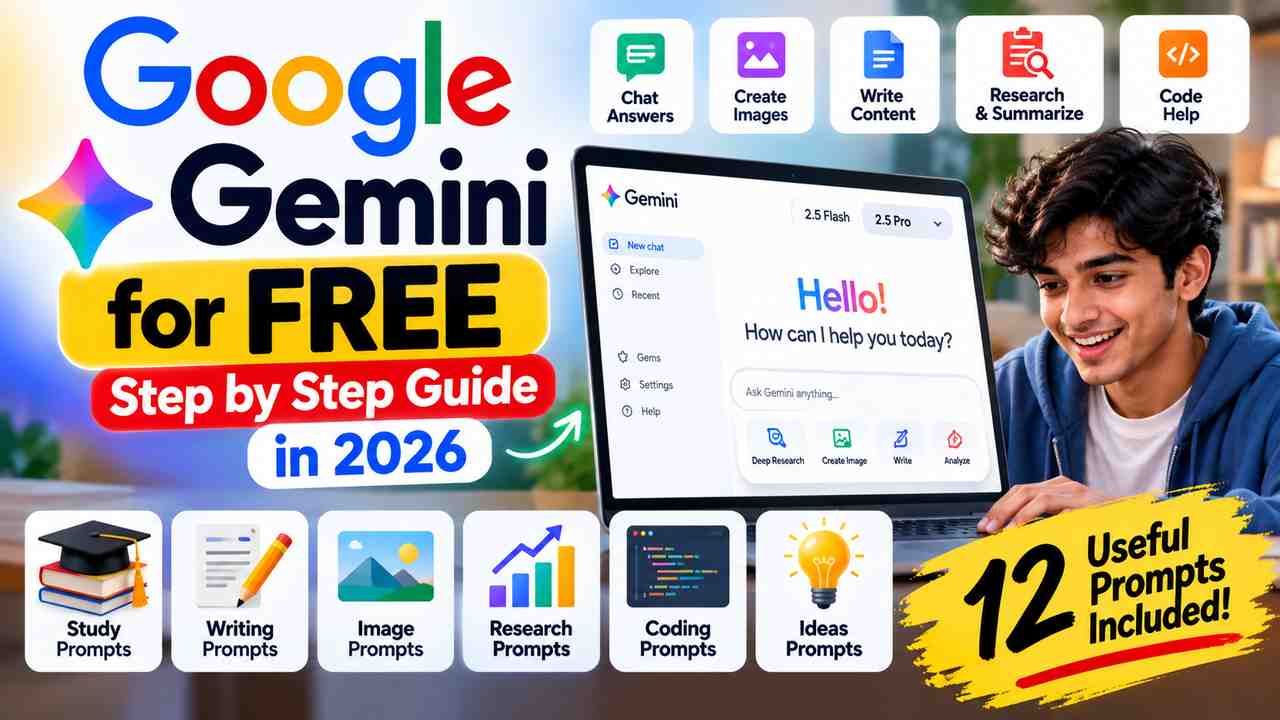
Google Gemini is an AI assistant you can use to ask questions, understand difficult topics, plan your day, draft emails, brainstorm ideas, and work with supported files and images. You can start using Gemini for free with a Google Account in India and many other supported countries. You do not need to buy a Google AI subscription just to try the basic experience.
This beginner-friendly guide explains how to use Google Gemini for free in 2026, how to write prompts that get more useful answers, and how to try practical examples for studying, writing, research, translation, coding, and everyday tasks. We also explain the limits of the free plan so you know when a paid subscription may—or may not—be necessary.
Quick answer: Open Gemini at gemini.google.com, sign in with your Google Account if prompted, type your question into the chat box, and submit it. Some features may be available without signing in, but signing in gives access to additional features and lets you save activity, subject to your settings and account type.
Table of Contents
- What Is Google Gemini?
- Is Google Gemini Free to Use?
- How to Use Google Gemini for Free: Step-by-Step
- How to Write Better Gemini Prompts
- 12 Copy-and-Paste Google Gemini Prompts
- How to Use Gemini with Files and Images
- Useful Things You Can Do with Gemini
- Free Plan Limits and Common Problems
- Privacy and Accuracy Tips
- Frequently Asked Questions
1. What Is Google Gemini?
Google Gemini is an AI assistant that responds to questions and instructions written in everyday language. Instead of searching for every answer manually, you can describe what you need and ask Gemini to explain, organise, summarise, rewrite, or brainstorm information.
For example, a student can ask Gemini to explain a science concept in simple language. A small-business owner can draft a customer email. A blogger can develop article ideas or improve a rough outline. A programmer can ask for an explanation of an error message. The result still needs review, but a clear prompt can give you a useful starting point.
Gemini can also support tasks involving uploaded files, images, and certain creative tools. Which features you see depends on your account, country, age, device, and Google’s current rollout and usage limits.
2. Is Google Gemini Free to Use in 2026?
Yes. Google provides a free Gemini experience, with standard usage limits. A paid Google AI plan is optional for people who only need basic chat and occasional help. Paid plans generally provide higher limits or access to additional features, but paying does not remove the need to check answers.
The free experience may include access to Gemini models, text conversations, help with writing and learning, and selected tools such as image generation, file-related features, Canvas, or Deep Research. Feature availability and usage limits can change, and some resource-intensive tools may have tighter limits or be unavailable at busy times.
Google explains current model and feature limits in its official Gemini Apps limits and upgrades guide. Check that page if a feature mentioned in an older tutorial is missing from your account.
Important: “Free Gemini” does not mean unlimited access to every model, video tool, image tool, or premium feature. Limits can depend on the complexity of your request, the model you select, uploaded files, and current service capacity.
3. How to Use Google Gemini for Free: Step-by-Step
Step 1: Open the official Gemini website
Open your browser and visit https://gemini.google.com/. Use the official Google address rather than a third-party site that claims it can unlock Gemini features.
Step 2: Sign in with your Google Account
Follow the sign-in instructions if Gemini asks you to log in. Some features may work without signing in, but a Google Account is needed for additional capabilities and to save activity. Work and school accounts can have different access rules set by an administrator.
Step 3: Enter a clear prompt
Type your question or task into the message box. You can write naturally; you do not need special coding syntax. Instead of entering only “English grammar,” try “Explain the present perfect tense in simple English and give me five examples.” The second prompt tells Gemini what kind of answer you need.
Step 4: Read the response and ask a follow-up
If the first answer is too long, too technical, or misses your point, ask Gemini to revise it. For example: “Explain that again for a beginner,” “Put the key points in a table,” or “Give me two examples from everyday life.” Follow-up questions can help you improve the response without starting from scratch.
Step 5: Use available tools when needed
Depending on your account, you may see options to upload a file or image, use voice features, create images, or work in Canvas. Choose the relevant tool, follow the on-screen instructions, and check the result. If an option is missing, it may not be available for your account or current free usage level.
Step 6: Check important information before using it
Gemini can make mistakes or present outdated information confidently. For news, prices, official rules, medical questions, or financial decisions, check reliable original sources. If Gemini provides citations, open them and confirm that they support the statements made.
4. How to Write Better Google Gemini Prompts
The quality of the prompt often changes the usefulness of the answer. You do not need to write a long instruction every time. Start by explaining the task, adding the context Gemini needs, and describing the format you want back.
| Prompt element | What to include | Example |
|---|---|---|
| Task | Say what you want done | Explain photosynthesis |
| Context | Explain who it is for or why you need it | For a class 8 student |
| Format | Describe the output | Use five bullet points |
| Tone or level | Specify the style | Simple language, no jargon |
| Limits | Set a length or scope | Under 200 words |
A useful prompt formula is: “Act as [helpful role]. Help me [task]. My situation is [context]. Give the answer in [format] and keep it [tone or length]. If anything is uncertain, tell me.” You can adapt this formula for schoolwork, business, writing, planning, and many other tasks.
5. 12 Copy-and-Paste Google Gemini Prompts
Try the prompts below in Gemini. Replace the words in square brackets with your own details. These are starting points, not guaranteed results; adjust the instructions to suit your task.
Prompt 1: Learn a difficult topic
Copy this prompt:
Explain [topic] to me as if I am a beginner. Start with a simple definition, then explain the main idea step by step. Give me three everyday examples, list five important points to remember, and finish with five practice questions. Use simple language and explain any difficult terms.
Useful for: Students, self-study, revision, and learning unfamiliar subjects.
Prompt 2: Create a study timetable
Create a realistic 7-day study plan for [subject or exam]. I can study for [number] hours each day. My strongest topics are [topics] and the topics I find difficult are [topics]. Include short breaks, revision time, and a quick self-test each day. Present the plan as a table and leave some buffer time for missed sessions.
Useful for: Students who want a starting timetable they can adjust to their real schedule.
Prompt 3: Write a professional email
Draft a polite, professional email to [recipient] about [reason]. Include the important details: [details]. Keep it under 150 words, use a clear subject line, and make the next action easy to understand. Do not invent facts or make promises I have not provided.
Useful for: Work emails, customer replies, appointment requests, and follow-ups.
Prompt 4: Generate ideas for a blog post
Suggest 10 useful blog post ideas about [topic] for [target audience]. Focus on questions a reader would genuinely want answered. For each idea, provide a working title, the reader’s main problem, the search intent, and three points the article should cover. Do not invent search-volume numbers or claim a topic is trending without evidence.
Useful for: Bloggers planning content. Validate keyword demand separately with Google Trends, Search Console, or Keyword Planner.
Prompt 5: Improve a rough paragraph
Edit the text below for clarity and flow while keeping my meaning and natural voice. Remove repetition, vague claims, and unnecessary filler. Do not add facts, statistics, or promises that are not in the original. First give me the revised version, then briefly list any sentences where the meaning was unclear. Text: [paste your paragraph].
Useful for: Editing drafts, reports, website copy, and everyday writing.
Prompt 6: Summarise a long document
Summarise the document I provide. Start with a 3-sentence overview, then list the main points, dates, decisions, and actions required. Separate facts stated in the document from your own interpretation. If a detail is missing or unclear, say so rather than guessing. Keep the summary under [word count] words.
Useful for: Notes, meeting documents, articles, and study material. Upload the document only if you are comfortable sharing its contents with the service.
Prompt 7: Translate and explain a phrase
Translate the following text from [source language] to [target language]. Keep the meaning and tone natural for a native speaker. After the translation, explain any idioms or culturally specific phrases. If a sentence has more than one possible meaning, show the alternatives. Text: [paste text].
Useful for: Understanding messages, learning languages, and preparing a first translation. Have important legal or official translations checked by a qualified person.
Prompt 8: Understand a coding error
Help me understand this coding error. My language and framework are [details]. I expected [expected result], but got [actual result]. Explain the likely cause, suggest the smallest safe fix, and show a corrected example. State any assumptions and tell me how to test the fix. Error and relevant code: [paste details, removing secrets and credentials].
Useful for: Learning programming and troubleshooting. Test suggested code in a safe environment before using it in a live project.
Prompt 9: Plan a low-cost trip
Help me plan a [number]-day trip to [destination] for [number] people, with a total budget of [amount]. We enjoy [interests] and prefer [travel style]. Create a flexible itinerary with estimated costs and transport options. Clearly mark anything that needs current verification, such as opening hours, ticket prices, visa rules, and transport schedules. Do not present estimates as confirmed prices.
Useful for: Building an initial travel plan. Verify live prices, entry requirements, and schedules before booking.
Prompt 10: Create an image idea
Help me create an image for [purpose]. The main subject is [subject], the setting is [setting], and the mood is [mood]. Use [colour palette], a [composition] layout, and a [visual style] look. Keep the image free of unnecessary text and leave clear space for a headline if needed. First improve this into a detailed image prompt, then tell me which available Gemini image tool I should use.
Useful for: Planning blog thumbnails, social graphics, and creative concepts. Image-generation access and limits vary by account and may change.
Prompt 11: Prepare for a job interview
Help me prepare for an interview for the role of [job title] at a company in [industry]. Ask me one practice question at a time, wait for my answer, then give constructive feedback on clarity, relevance, and examples. Do not invent experience or qualifications for me. At the end, suggest five topics I should review before the interview.
Useful for: Practice interviews, improving answers, and identifying subjects to revise.
Prompt 12: Turn information into a presentation outline
Turn the information below into a presentation outline for [audience]. Create [number] slides. For each slide, provide a short title, no more than four concise bullets, and one suggestion for a visual. Start with the problem, explain the key points in a logical order, and finish with a clear takeaway. Do not invent statistics. Source material: [paste notes].
Useful for: School presentations, training, meetings, and planning a talk. Review every claim before presenting it.
6. How to Use Gemini with Files and Images
When file or image uploads are available, you can ask Gemini to explain, organise, or summarise the material instead of describing everything manually. Open a chat, select the add-file option, choose a supported file or image, and write a specific instruction about what you want it to do.
For example, after uploading a non-sensitive class handout, you could ask: “Summarise this handout into 10 revision points, explain the three hardest concepts, and create five quiz questions using only the uploaded material.” For an image, you could ask: “Describe the main objects in this picture and suggest a clear caption.”
Upload options, file types, size limits, and usage allowances may vary. Do not upload private documents, passwords, customer information, confidential work files, or other sensitive material unless you have checked the applicable privacy terms and have permission to share it.
7. Useful Things You Can Do with Google Gemini
- Learning: Ask for plain-language explanations, practice questions, and revision plans.
- Writing: Draft emails, organise ideas, improve clarity, and brainstorm headlines.
- Research: Explore a topic, request sources, and identify questions to investigate further.
- Planning: Build schedules, compare options, and break a large task into smaller steps.
- Translation: Translate everyday text and ask about tone or idioms.
- Files and images: Work with supported uploads when the feature is available to your account.
- Reusable instructions: Use Gems, where available, to save instructions for repeated tasks. See Google’s official guide to using Gems.
For a wider comparison of AI assistants, read our guide: ChatGPT vs Google Gemini vs Claude in 2026. If you want to learn prompt-writing basics in another AI tool, see our beginner’s guide to using ChatGPT.
8. Free Plan Limits and Common Problems
Free access is useful, but it has limits. The exact number of prompts or generations is not guaranteed to remain the same. Google can adjust limits based on the model, feature, complexity of the task, and service capacity.
- You reached a usage limit: Wait until the limit refreshes or use another available model or feature. Gemini should display relevant limit information when applicable.
- A tool is missing: Check whether it is available in your country, account type, age group, device, and current plan.
- You cannot sign in: Check that you are using a supported account and browser. School or work accounts may be managed by an administrator.
- The answer is inaccurate: Rephrase the question, ask Gemini to explain its reasoning in plain language, and verify the claim with reliable sources.
- The answer is too generic: Add context, audience, examples, format, and any limits that matter.
If you are considering a paid subscription, first identify the specific limit or feature that is stopping your work. Compare the current plans on Google’s official subscription page rather than paying because a tutorial says premium access is essential.
9. Privacy and Accuracy Tips
- Do not treat an AI response as automatically correct, even if it sounds confident.
- Open original sources when you need current facts, statistics, prices, or official requirements.
- Avoid entering passwords, bank details, private identification numbers, or confidential business information into a chat.
- Review Gemini’s activity and privacy settings in your account, especially if you use the service for work.
- Before publishing AI-assisted writing, fact-check it, add your own experience or analysis, and remove unsupported claims.
- Follow school, employer, and copyright rules when using AI-generated or AI-assisted material.
10. Frequently Asked Questions
Can I use Google Gemini for free in India?
Yes. Google offers a free Gemini experience in India. You can open the official Gemini website and sign in with a Google Account for access to additional features. Some tools and usage levels require a paid plan or may be limited.
Do I need a Google Account to use Gemini?
Some features may be available without signing in, depending on your location and circumstances. A Google Account is needed for additional features and to save activity. Work and school accounts may have different requirements.
Is Google Gemini completely free with unlimited prompts?
No. The free experience has standard usage limits, and those limits can change. Certain advanced features or higher usage allowances may require a Google AI subscription.
Can Gemini write blog posts and emails?
Yes. Gemini can help create outlines and first drafts, rewrite text, brainstorm ideas, and draft emails. Review the result for accuracy, originality, tone, and whether it meets your needs before sending or publishing it.
Can I use Gemini in Hindi?
Gemini supports multiple languages, including Hindi. You can write your prompt in Hindi or ask it to respond in the language you prefer. Availability of particular features may vary by language.
Why does Gemini sometimes give incorrect answers?
Generative AI can misunderstand a question, miss context, or produce incorrect information. Give it clearer instructions and verify important claims with trustworthy sources. Do not rely on Gemini alone for professional, medical, legal, or financial decisions.
Do I need Google AI Plus to use Gemini?
No. You can start with the free version. Google AI Plus and other paid plans are intended for people who need higher limits or additional features. Compare the current plan details before subscribing.
Final Thoughts
The easiest way to learn Google Gemini is to start with one real task. Ask it to explain a difficult topic, improve an email, organise your notes, or help plan a project. If the first response is not useful, add context and explain what you want changed.
You can try Gemini without buying a subscription, but free access is not unlimited and its features can change. Check important facts, protect private information, and use the prompts in this guide as starting points rather than fixed formulas.
Try Gemini: Open the official Google Gemini website.
Official references: How to use Gemini Apps · Gemini usage limits and upgrades · How to use Gems.
Related Articles