Table of Contents
Is your phone showing “Storage space running out”? A full phone can stop you from installing apps, downloading files, recording videos or updating software. You can often free up space without losing important photos—but the safe method is to check what is using storage first and back up important files before deleting them.
This guide explains simple ways to free up storage on Android and iPhone, including what is safe to remove and what you should leave alone.
Quick steps to free up phone storage
- Check the Storage section in your phone’s Settings.
- Remove downloads, videos and duplicate files you recognise and no longer need.
- Delete offline music, films and maps you can download again.
- Uninstall apps you no longer use.
- Confirm that photos are backed up before removing local copies.
- Do not tap “Clear storage” or “Clear data” unless you understand what that app will lose.
Table of contents
- Check what is using space
- Free up storage on Android
- Free up storage on iPhone
- Protect your photos and videos
- What not to delete
- Frequently asked questions
1. Check what is using your phone storage
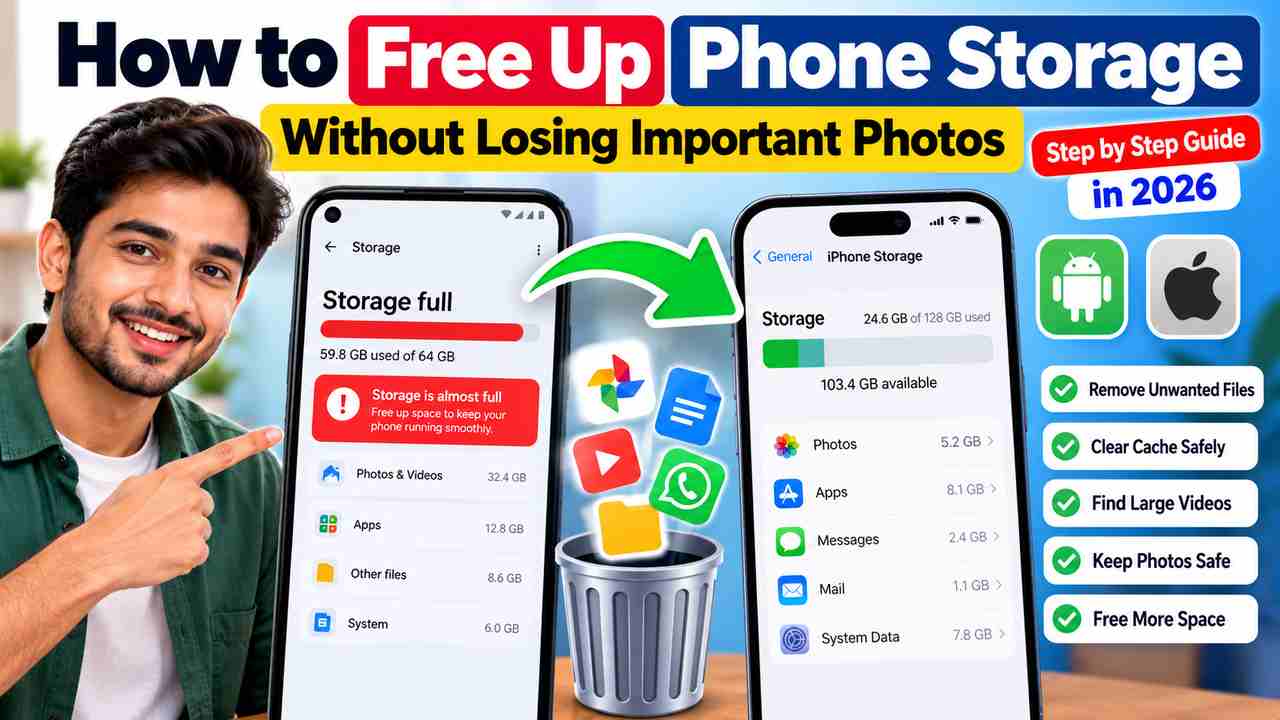
Android: Open Settings and tap Storage. Depending on the brand, it may be under Battery and device care or Device care. Review the categories and open the largest ones before deleting anything.
iPhone: Open Settings → General → iPhone Storage. Wait for the breakdown to load, then review the apps and recommendations. The menu names may differ slightly by software version.
Checking first helps you find the real cause—often large videos, app downloads or unused apps—rather than deleting small files at random. See Google’s Android storage guide or Apple’s photo and video storage guide.
2. How to free up storage on Android
Remove unwanted downloads
Open Files or Files by Google and review Downloads. Remove only files you recognise and no longer need, such as old PDFs, duplicate documents or videos you have already saved elsewhere. Google’s Files by Google help page explains how to find and manage files.
Clear app cache carefully
On many Android phones, open Settings → Apps → choose an app → Storage or Storage and cache → Clear cache. This removes temporary files, which an app may create again later.
Do not confuse Clear cache with Clear storage or Clear data. The latter options may remove local files, settings, downloads or your sign-in state. For banking, messaging and other important apps, check the app’s backup and recovery instructions before changing its data.
Delete offline downloads
Open music, video, podcast and map apps and look for Downloads or Offline content. Remove items you no longer need and can download again. Check the app’s confirmation message before deleting anything.
Uninstall or archive unused apps
Uninstall games and apps you no longer use. Some Android versions also support app archiving, which removes the app software while retaining its icon and some data. Availability depends on your device and Android version. Read Google Play’s app archiving instructions.
3. How to free up storage on iPhone
Go to Settings → General → iPhone Storage. Review the recommendations and check which apps use the most space. If you choose Offload App, iOS removes the app but keeps its documents and data. Delete App removes the app and may also remove locally stored data, so read the prompt carefully.
You can also remove offline music, videos, podcasts and files you no longer need. Check each app’s Downloads section instead of deleting folders you do not recognise.
4. Free up space without losing important photos
- Open your photo backup service and check that backup has completed.
- Look for items still waiting to upload, especially large videos.
- Open a few photos from the backup account to confirm they are available.
- For extra protection, copy important files to a computer or external drive.
- Only then use a storage-cleanup feature that removes local copies.
On Android, Google Photos offers “Free up space on this device” for photos that are backed up. It deletes local copies, so verify the backup first and remember that viewing cloud copies may require internet access. Follow Google Photos’ official instructions.
On iPhone, if you use iCloud Photos and have enough iCloud space, you can review Settings → your name → iCloud → Photos and the option to optimise iPhone storage. Be careful: iCloud Photos syncs changes across devices, so deleting a synced photo can also delete it from the cloud library and other synced devices. Read Apple’s guidance first.
5. What you should not delete
- Photos that are not backed up: make another copy before removing them.
- Chat backups: check that you can restore conversations before deleting backup files.
- Unknown system folders: do not delete files just because their names look unfamiliar.
- App data without checking: it can remove saved content, settings or sign-in details.
- Trash or Recently Deleted items: emptying these folders may permanently remove files, so review them first.
6. What if your phone is still full?
Restart your phone and check Storage again. Move large videos and documents to a computer or external drive, review messaging apps for large attachments, and remove downloads you can safely get again. If “System” or “Other” takes up unusually large space, consult the phone manufacturer’s support rather than deleting system folders manually.
You usually do not need a separate phone-cleaner app for basic storage management. Start with the built-in Settings and trusted file tools, and be cautious about apps that request unnecessary permissions or promise unrealistic results.
Frequently asked questions
Does clearing cache delete photos?
Clearing an app’s cache normally removes temporary files, not your photo library. The result depends on the app and the option selected. Do not confuse Clear cache with Clear data or Clear storage.
Why is my phone full after deleting photos?
The photos may still be in Trash or Recently Deleted, other apps may be using space, or the storage breakdown may need time to refresh. Check storage categories and review deleted-item folders before emptying them.
Will freeing up storage make my phone faster?
It can help when a device is nearly full and creates room for updates and downloads. It will not solve every cause of slowness, such as a faulty app, outdated hardware or a battery issue.
Final checklist
Check your storage breakdown, remove unwanted downloads, clear cache where appropriate, uninstall apps you no longer use and verify photo backups before deleting local copies. Read confirmation messages carefully—especially those mentioning Clear data, Delete App or permanent deletion. A careful cleanup is safer than deleting files in a hurry.
Related Articles