Table of Contents
Worried that someone may have access to your phone? A sudden battery drain, unfamiliar app, strange pop-ups or unusual account activity can be concerning, but none of these signs alone proves that your phone has been hacked.
The good news is that you can do several checks yourself before assuming the worst. This guide shows how to check an Android phone for suspicious apps, permissions, security warnings and unfamiliar Google Account sessions. It also explains what to do if you actually find something you do not recognize.
Table of Contents
- Quick check: the 5 things to inspect first
- Signs that deserve a closer look
- Step 1: Check Android Security & Privacy
- Step 2: Run Google Play Protect
- Step 3: Look for unfamiliar apps
- Step 4: Check app permissions and Privacy Dashboard
- Step 5: Check devices signed in to your Google Account
- Step 6: Check Android and security updates
- Step 7: Check battery and mobile data usage
- Step 8: Check powerful access such as Accessibility
- What to do if you find something suspicious
- What not to do
- What about iPhone?
- Frequently asked questions
Quick Check: The 5 Things to Inspect First
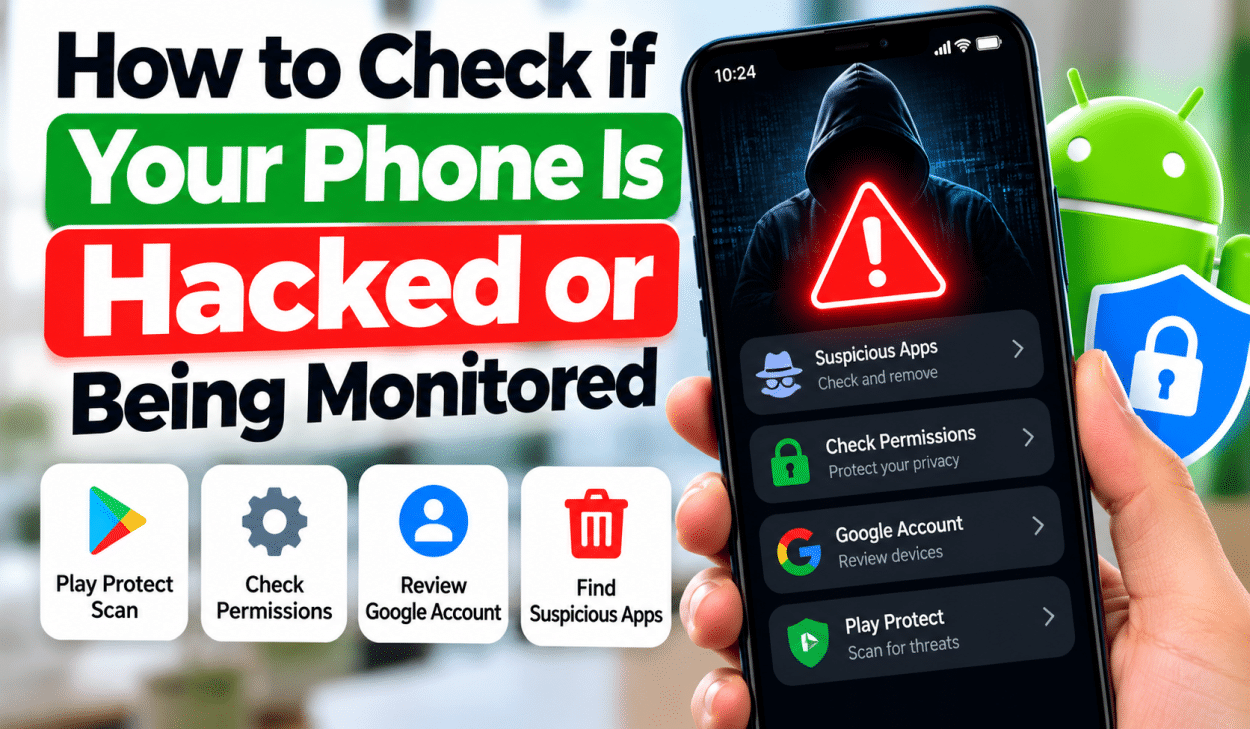
- Open Settings → Security & privacy and look for security warnings.
- Open Google Play Store → profile picture → Play Protect and run a scan.
- Review your installed apps and remove anything you do not recognize.
- Check Privacy Dashboard and review recent camera, microphone and location access.
- Check Google Account → Security & sign-in → Your devices for unfamiliar devices or sessions.
These checks are more useful than trying to diagnose a hack from battery drain or a warm phone alone. Many ordinary apps, background syncing, poor signal and system updates can cause those symptoms.
Signs That Deserve a Closer Look
| What you notice | What it could mean | What to check |
|---|---|---|
| Unknown app | An app may have been installed without your knowledge | App list, developer and permissions |
| Unexpected permission use | An app may be accessing information it does not need | Privacy Dashboard and app permissions |
| Unknown Google Account device | Your account may be signed in somewhere you do not recognize | Your devices in Google Account |
| Security warning | Android or Play Protect has detected a potential problem | Security & privacy and Play Protect |
| Sudden pop-ups outside normal apps | Could be unwanted software or a browser notification | Recently installed apps and browser notifications |
| Battery drain | Could be an app, poor signal, high screen use or background activity | Battery usage before assuming malware |
Important: battery drain, overheating, slow performance or increased data use are not proof that somebody is monitoring your phone. Treat them as reasons to investigate, not as confirmation.
Step 1: Check Android Security & Privacy
On many newer Android phones, security information is grouped under Settings → Security & privacy. Google says this area can show security warnings, Play Protect status, device lock information, account security, system updates and privacy information. Some phones use separate Security and Privacy menus instead.
- Open Settings.
- Tap Security & privacy, or look for separate Security and Privacy options.
- Read any warning shown at the top.
- If Android reports that the device is at risk, open the warning and follow the recommended action.
Step 2: Run Google Play Protect
Google Play Protect checks apps and devices for potentially harmful behavior. It can check apps before you download them from Google Play, scan apps from other sources, warn you about harmful apps and, in some cases, deactivate or remove them.
- Open the Google Play Store.
- Tap your profile picture in the top-right corner.
- Tap Play Protect.
- Start a scan if one is not already running.
- Read the result carefully. If Play Protect reports a harmful app, follow Google’s instructions instead of ignoring the warning.
If you regularly install apps from outside Google Play, check the Play Protect settings for Improve harmful app detection. Google recommends keeping Play Protect enabled.
Step 3: Look for Unfamiliar Apps
Open Settings → Apps and review the installed applications. The exact menu name varies by phone manufacturer, so Samsung, Xiaomi, OnePlus, Motorola, Pixel and other devices may look different.
- Look for apps you do not remember installing.
- Check apps with generic or misleading names.
- Pay attention to apps installed around the time the problem started.
- Open an unfamiliar app and check its permissions and information before deciding what to do.
Do not uninstall a system component simply because its name looks unfamiliar. Android phones contain many system services that most users never interact with. If you are unsure about an app, search its exact name and developer first.
Step 4: Check App Permissions and Privacy Dashboard
Android’s Privacy Dashboard can show which apps have accessed sensitive permissions and when. On supported versions, you can review access to areas such as the camera, microphone and location.
- Open Settings.
- Tap Privacy or Security & privacy.
- Open Privacy Dashboard.
- Select a permission that concerns you, such as Camera or Microphone.
- Review the apps that accessed it and when.
- If an app does not need a permission, open its permissions and change the setting where appropriate.
For example, a calculator app normally has no obvious reason to need continuous microphone access. That does not automatically make the app malicious, but it is a good reason to investigate why the permission was requested.
Step 5: Check Devices Signed In to Your Google Account
A phone can be perfectly secure while your Google Account is compromised. That is why account security deserves a separate check.
- Open your Google Account.
- Go to Security & sign-in.
- Find Your devices.
- Tap Manage all devices.
- Review the devices and sessions listed.
- If you find a device or session you do not recognize, select it and follow Google’s sign-out and account-security instructions.
Do not assume that every unfamiliar location means someone hacked your account. Google explains that locations can be approximate and that multiple sessions can sometimes belong to the same physical device.
Step 6: Check Android and Security Updates
Keeping Android and Google Play system components updated is an important part of device security. On many phones you can check from Settings → System → Software updates, although the exact location depends on the manufacturer.
- Install available Android system updates.
- Install available security updates.
- Keep Google Play system updates current when your phone provides them.
- Update apps through Google Play when updates are available.
Step 7: Check Battery and Mobile Data Usage
If you noticed unusual battery drain or mobile data use, check which apps are responsible before concluding that your phone is hacked.
- Open Settings → Battery and review battery usage.
- Open Settings → Network & internet or your phone’s mobile-network settings and review data usage.
- Look for an app with unusually high background activity.
A high figure is not automatically malicious. Video apps, cloud backups, photo syncing, navigation and social media can legitimately use significant battery or data.
Step 8: Check Powerful Access Such as Accessibility
Some Android features give apps powerful control over what happens on the screen. Accessibility access can be legitimate for accessibility tools, automation and certain trusted apps, but you should investigate an unfamiliar app that has been granted powerful access.
Open Settings and search for Accessibility. Review installed services and check whether you recognize them. Menu names differ between Android manufacturers and versions, so use your phone’s Settings search if you cannot find the option.
What to Do If You Find Something Suspicious
- Disconnect if necessary. If you believe an active malicious app is doing something harmful, temporarily turn off mobile data and Wi-Fi while you investigate.
- Run Play Protect. Follow any warning it gives you.
- Remove an app you do not trust. If Android allows you to uninstall it normally, remove it and restart the phone.
- Secure your Google Account. Sign out unfamiliar devices and change your password if you believe the account was accessed by someone else.
- Review important accounts. Check banking, email, social media and other accounts for unfamiliar activity, especially if the suspicious app had access to sensitive information.
- Install updates. Bring Android and your apps up to date.
- Consider a factory reset for a serious compromise. Back up important files first and use the phone manufacturer’s official reset procedure.
If you believe your banking information or payment credentials were exposed, contact your bank using the official number or app. Do not use a phone number shown in a suspicious pop-up or message.
What Not to Do
- Do not install a random “phone hacker detector” just because an advertisement claims your phone is infected.
- Do not give remote-control access to a stranger who says they can remove a virus.
- Do not enter your Google password into a page reached through an unexpected pop-up.
- Do not assume that every battery problem means surveillance.
- Do not delete Android system apps simply because you do not recognize their names.
What About iPhone?
iPhone users should use Apple’s built-in security and privacy controls rather than Android instructions. Check the installed apps, privacy permissions, Apple Account devices, software updates and any security alerts. If you believe someone has access to your Apple Account, change the password and review the devices associated with the account.
Frequently Asked Questions
Can a phone be hacked without me knowing?
Yes. Some attacks can happen without obvious symptoms. That is why security checks, software updates, account protection and careful app installation are more reliable than looking for one dramatic sign.
Does fast battery drain mean someone is monitoring my phone?
No. Battery drain has many ordinary causes, including poor signal, high screen brightness, video use, background syncing and aging batteries. Check battery usage before assuming surveillance.
How can I tell if an app is dangerous?
Check where it came from, the developer, recent reviews, permissions, Play Protect results and whether its behavior matches what the app is supposed to do. See our guide: How to Check if an Android App Is Safe Before Installing It.
Should I install an app that says it can detect hackers?
Be careful. A pop-up saying “Your phone is hacked” is not evidence that your phone is hacked. Close the page and use built-in security tools such as Google Play Protect instead of trusting an unexpected advertisement.
What is the strongest sign that my Google Account was compromised?
An unfamiliar device, security event or account change that you did not make deserves immediate attention. Review your Google Account’s security activity and devices, then secure the account if necessary.
Final Checklist
- Check Android Security & privacy warnings.
- Run Google Play Protect.
- Review installed apps.
- Check Privacy Dashboard and app permissions.
- Review Google Account devices and sessions.
- Install Android and security updates.
- Check unusual battery or data usage.
- Review powerful access such as Accessibility.
- Secure important accounts if you find genuine suspicious activity.
there is no single test that can prove a phone is being monitored. The safest approach is to check the phone’s built-in security controls, review installed apps and permissions, inspect your account sessions and keep the device updated. If you find a specific warning or unfamiliar access, investigate that item rather than relying on a generic “hacked phone” claim
Related Articles