Table of Contents
Think someone may be using your Google Account without permission? An unfamiliar device, a security alert you did not expect, or a password-reset message you did not request can be a reason to check. But one unusual location or device entry does not automatically mean your account has been hacked.
This guide explains how to check devices signed in to your Google Account, review recent security activity, spot suspicious changes, sign out sessions you do not recognize, and secure your account if something looks wrong.
Table of Contents
- Quick check: start here
- 1. Check devices signed in to your Google Account
- 2. Review recent security activity
- 3. Check Google security alerts
- 4. Look for account changes you did not make
- 5. Check Gmail for unfamiliar activity
- 6. What to do if you find something suspicious
- 7. Check your recovery email and phone number
- How to avoid locking yourself out
- Frequently asked questions
Quick Check: Start Here
If you are concerned that someone may have access to your account, use Google’s own security pages first:
- Visit Google Account Security.
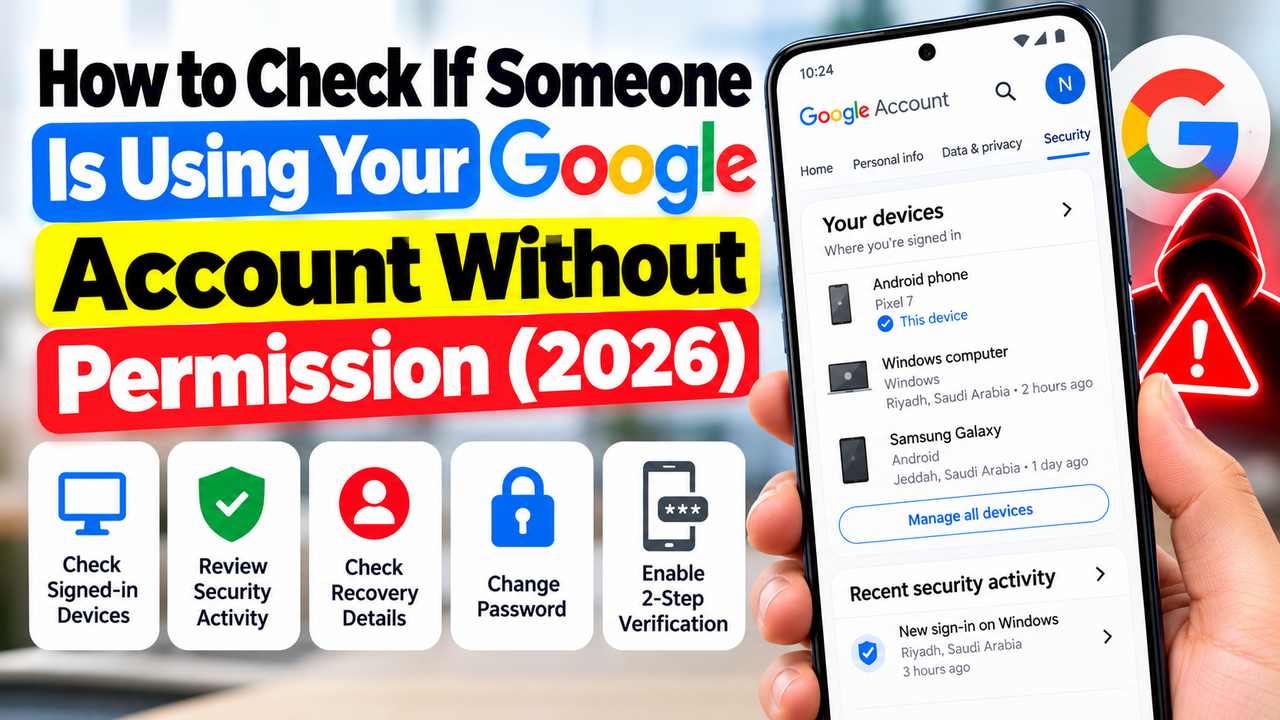
- Open Your devices and select Manage all devices.
- Review Recent security activity for events you do not recognize.
- Check that your recovery email and phone number are still yours.
- If you find clear evidence of unauthorized access, secure the account using the steps below.
Use a trusted device and type the Google Account address yourself, rather than following a link in an unexpected email or text message.
1. Check Devices Signed In to Your Google Account
Google lets you review devices and sessions that have recently accessed your account. This is one of the most useful checks, but you need to read the details carefully.
- Open your Google Account.
- Select Security or Security & sign-in, depending on the layout.
- Find the section called Your devices.
- Select Manage all devices.
- Review the devices and sessions listed.
- Select an entry to see more details. If you are sure you do not recognize it, follow the on-screen option to sign it out.
What should you look for? A device you have never used, a session that does not match your activity, or access that continued after you signed out of a device may deserve investigation.
Important: the list can show multiple sessions for one device. A new browser, private window, app, or a session that refreshed after signing in can sometimes create another entry. The displayed location may also be approximate and affected by your internet provider or network. Do not treat a different city alone as proof of hacking.
2. Review Recent Security Activity
Google’s recent security activity page can show important events involving your account, such as a sign-in or a security setting change. Review it for actions you do not remember taking.
- Go to Google Account Security.
- Find Recent security activity.
- Open recent events and read the date, device or browser information shown.
- If an event was not yours, use Google’s prompts to secure the account.
Pay particular attention to unfamiliar sign-ins, password changes, recovery details being changed, or security methods being added or removed. If you are unsure about an event, check it from your account directly instead of clicking links in a message about it.
3. Check Google Security Alerts
Google may send an alert when it detects a suspicious sign-in or an important account change. If you receive one you did not expect, do not ignore it—but verify it safely.
- Open Google Account Security directly in your browser.
- Check whether the event also appears in your account’s security activity.
- Read the details before choosing whether the activity was yours.
- Do not provide your password or verification code to anyone who contacts you unexpectedly.
Attackers can also imitate security emails and text messages. A message that looks urgent is not automatically genuine. Avoid opening attachments or entering your login details on a page reached through an unexpected link.
4. Look for Account Changes You Did Not Make
Someone who gains access may try to make it harder for you to recover the account. Review these settings in your Google Account:
- Recovery phone number and email: confirm that both belong to you and are still accessible.
- Two-Step Verification: review the methods and devices used to verify sign-ins.
- Passkeys and security keys: remove an unfamiliar method if Google gives you that option.
- Apps and services connected to your account: review third-party access and remove connections you do not trust.
- Personal information: check for changes you did not make.
Menu names can change as Google updates its account pages. If you cannot find a setting, use the search or navigation within Google Account Security rather than relying on an old screenshot.
5. Check Gmail for Unfamiliar Activity
If you use Gmail, look for signs that someone may have accessed your mailbox or changed its behavior. Review recent messages and settings for anything you did not do.
- Check Sent, Trash and Spam for messages you do not remember sending or moving.
- Look for password-reset emails or account alerts you did not request.
- Review Gmail settings for unfamiliar forwarding addresses or filters.
- Check whether messages are being automatically archived, deleted or forwarded unexpectedly.
An unfamiliar email alone is not proof that your account was accessed. The stronger warning signs are changes in your mailbox settings or messages sent from your account that you did not authorize.
6. What to Do If You Find Something Suspicious
If you find a device or activity you are confident is not yours, act promptly. If you can still sign in, take these steps from a trusted phone or computer.
- Secure your Google Account: follow Google’s account-security guidance at Secure a hacked or compromised Google Account.
- Change your password: choose a strong, unique password you do not use on another website. If you cannot sign in, use Google’s official account recovery process.
- Sign out unfamiliar sessions: return to Your devices and sign out of devices you do not recognize.
- Check recovery details: make sure an unfamiliar phone number or email has not been added.
- Turn on Two-Step Verification: choose a method you can reliably access and keep backup options secure.
- Review connected apps: remove third-party access you do not recognize or no longer need.
- Secure other accounts: if you reused the same password elsewhere, change it on those services too—starting with your email, financial and social accounts.
If you suspect your own computer or phone is compromised, use a trusted device to change your password and review account access. Do not share verification codes with anyone, even someone claiming to be Google support.
7. Check Your Recovery Email and Phone Number
Your recovery details can help you regain access if you are locked out. They should be current, private and controlled by you.
- Open your Google Account settings.
- Go to the personal information or security area where recovery options are managed.
- Confirm the recovery email and phone number are correct.
- Update any outdated information after verifying your identity.
If you cannot sign in or someone has changed your recovery information, use Google’s official Account Recovery page. Complete the process on a device and from a location you normally use when possible.
How to Avoid Locking Yourself Out
- Make sure your recovery phone and email are up to date.
- Keep your phone’s screen lock enabled and your operating system updated.
- Use a unique password and do not share it with anyone.
- Set up Two-Step Verification and keep backup codes in a safe place if you use them.
- Review account security periodically, especially after using a shared or public device.
- Sign out of shared computers when you finish.
Frequently Asked Questions
Can I see who is using my Google Account?
Google can show devices, sessions and security events associated with your account, but it may not identify a person by name. Use the available details to decide whether a session is yours, and secure the account if you find activity you did not authorize.
Does an unfamiliar location mean my Google Account is hacked?
Not necessarily. Location information can be approximate, and network routing may make a sign-in appear to come from a different area. Check the device, time and activity together before deciding what to do.
Can someone read my Gmail if they have my Google Account password?
If they can successfully sign in and access Gmail, they may be able to read messages and other account information. Change a compromised password, review devices and connected apps, and enable Two-Step Verification.
What if I cannot access my Google Account?
Use Google’s official account recovery process. Avoid paid recovery services or people who promise guaranteed access in exchange for your password or verification codes.
Will changing my password sign everyone out?
Changing your password is an important step, but Google may keep some devices or sessions signed in in certain circumstances. After changing it, return to your device list and manually sign out unfamiliar sessions where possible.
Final Checklist
- Check Your devices and review unfamiliar sessions.
- Read Recent security activity.
- Verify recovery email and phone number.
- Review Gmail Sent, Trash, filters and forwarding settings.
- Change your password if you find evidence of unauthorized access.
- Sign out unknown devices and review connected apps.
- Enable Two-Step Verification and keep recovery options safe.
Bottom line: the best way to check whether someone is using your Google Account is to review the device list, recent security activity and account settings directly through Google. One unfamiliar location is not conclusive, but an unknown device combined with security changes you did not make should be taken seriously.
Official Google References
- Google Account Security
- See devices with account access
- Secure a hacked or compromised Google Account
- Google Account Recovery
Related Articles