Table of Contents
Before installing an Android app, it is worth taking a minute to check whether the app looks trustworthy. A familiar-looking icon or a large number of downloads does not automatically mean an app is safe.
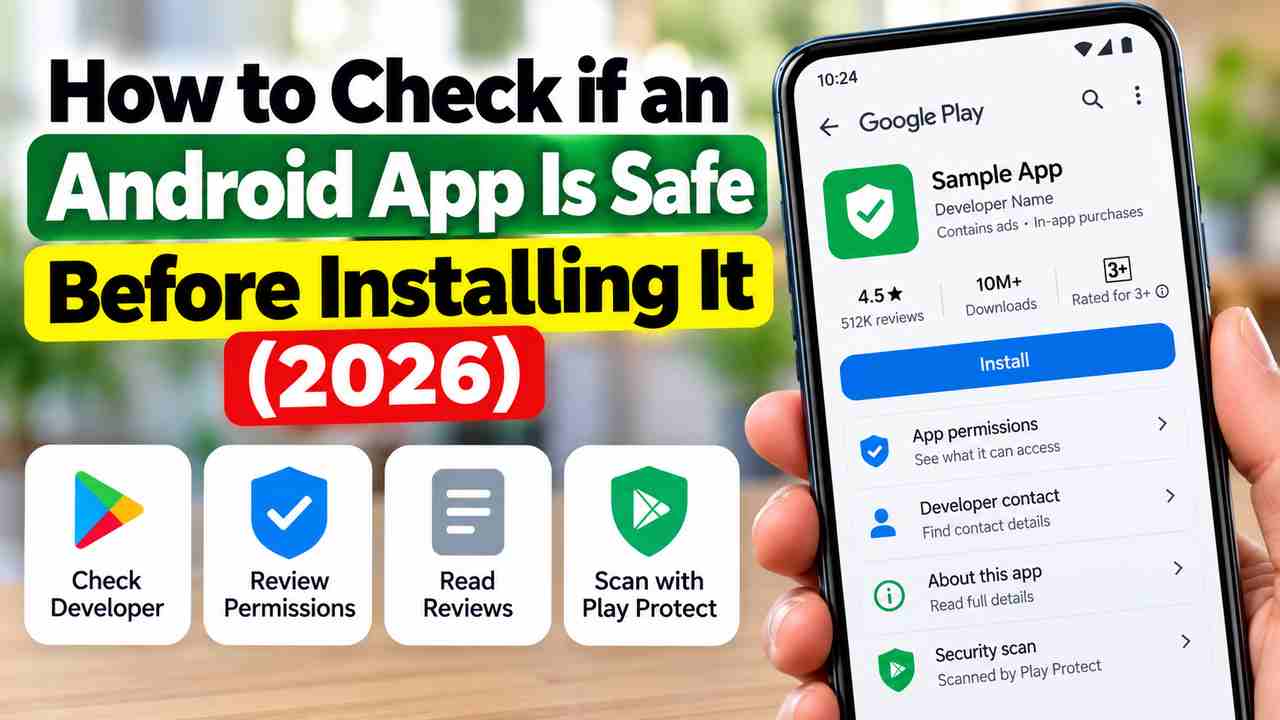
Android has built-in protections such as Google Play Protect, but you should still check the app’s developer, permissions, reviews, update history and download source. This guide shows a simple way to do that without installing extra “phone security” apps.
Quick checklist before you install an Android app
- Download it from Google Play when possible.
- Check the developer name and the app’s official website.
- Read recent reviews, not only the overall star rating.
- Look at the app’s permissions and ask whether they make sense.
- Check when the app was last updated.
- Keep Google Play Protect enabled.
- Be especially careful with APK files sent through messages, websites or unknown sources.
1. Check where the app comes from
For most people, Google Play is the simplest place to get Android apps. Google recommends using Google Play, while also noting that apps from unknown sources can put your device and personal information at risk.
If somebody sends you an APK through WhatsApp, Telegram, email or a website, do not install it automatically. An APK can be legitimate, but the fact that it installs successfully does not mean it is safe.
2. Check the developer name
Open the app’s Google Play listing and look at the developer information. If you are looking for an app from a bank, government department, airline or another known organization, compare the developer information with the organization’s official website.
Be careful with apps that copy the name, logo or description of a popular service but are published by an unrelated developer. A convincing logo is not proof that an app is official.
3. Read the recent reviews
Do not judge an app only by its four- or five-star rating. Open the reviews and look at recent comments. Pay attention to repeated complaints about unexpected ads, login problems, subscriptions, suspicious behavior, excessive permissions or features that do not work as described.
Reviews are useful evidence, but they are not a security guarantee. A legitimate app can have negative reviews, and a harmful app can have positive or manipulated reviews.
4. Look at the permissions
Think about what the app actually needs to do. A simple calculator asking for access to your contacts, SMS messages or microphone deserves more scrutiny than a calculator that only needs the permissions required for its normal features.
Do not assume that every permission request means an app is malicious. Some legitimate apps genuinely need sensitive access. The important question is whether the permission makes sense for the app’s purpose.
5. Check when the app was updated
Look at the app’s update information on Google Play. An app that has not been maintained for a very long time may deserve extra caution, particularly if it handles passwords, payments, messages or other sensitive information.
6. Use Google Play Protect
Google Play Protect checks apps when you install them and periodically scans apps on your device. It can warn you about potentially harmful apps and, in some cases, disable or remove them.
How to check Play Protect
- Open the Google Play Store.
- Tap your profile picture in the top-right corner.
- Tap Play Protect.
- Review the security status and available scan options.
Google recommends keeping Play Protect turned on. It can also check apps installed from sources outside Google Play.
7. Be careful with APK files and unknown sources
Installing an APK from outside Google Play is sometimes legitimate, but it increases the need for caution. Google warns that apps downloaded from unknown sources can put your device and personal information at risk.
If a website, phone call or message tells you to install an APK to “fix your bank account,” “receive a refund,” “verify your KYC,” “track a delivery,” or access an urgent offer, stop and verify the request through the organization’s official website or customer-service number.
8. Never install an app just because someone pressures you
One of the biggest warning signs is pressure. Scammers may pretend to be bank employees, customer-support agents, delivery companies or government officials and ask you to install an app immediately.
You do not need to install an app simply because somebody claims it is required. Find the organization’s official website yourself and contact it through a verified channel.
9. Check the app’s data and privacy information
On Google Play, review the information provided about the app’s data practices. Look for what information the developer says the app collects and how that information is handled.
This information is not a guarantee that an app is trustworthy, but it can help you decide whether the app’s data practices match what you expect.
10. Check whether the app is really the one you wanted
Scammers sometimes create apps with names that are very close to popular apps. Before tapping Install, check the spelling, developer name, icon, description and website information.
Warning signs that deserve extra caution
| Warning sign | Why you should stop and check |
|---|---|
| APK sent by a stranger | You do not know who created or modified the file. |
| Urgent request to install an app | Pressure is commonly used in scams. |
| Developer name does not match the company | The app may not be the official app you intended to install. |
| Unusual permissions | The requested access may not match the app’s purpose. |
| Many recent complaints | Users may be reporting current problems that an older rating does not show. |
| Promises that sound too good to be true | Fake rewards, refunds or free-money offers are common scam themes. |
What if Google Play Protect warns you?
Do not ignore a Play Protect warning just because the app was recommended by someone. Read the warning and consider removing the app if Google identifies it as potentially harmful. Play Protect may warn you, disable a harmful app or remove it in some situations.
Can a Google Play app still be unsafe?
Google Play provides important security checks, but you should not treat a store listing as an absolute guarantee. Continue to check the developer, permissions, reviews and the reason you need the app. Keep your Android device and apps updated and leave security protections enabled.
What should you do if you already installed a suspicious app?
- Stop using the app if you believe it may be harmful.
- Run a Google Play Protect scan.
- Review the app’s permissions and remove unnecessary access where possible.
- Uninstall the app if you no longer trust it.
- If you entered a password or financial information into a suspicious app, change the affected password using a trusted device or official website and contact your bank or service provider if necessary.
- Keep an eye on your accounts for unusual activity.
Final checklist
Before installing an Android app, ask yourself five simple questions: Who published it? Where did I get it? What permissions does it need? What are recent users saying? Why am I being asked to install it? If the answers do not make sense, stop before installing.
For official guidance, see Google’s information about Google Play Protect and downloading Android apps safely.