
Learn how to create a professional domain email for your website, choose a provider, secure the account and…
How to Disable AutoPay in PhonePe: Step-by-Step Guide
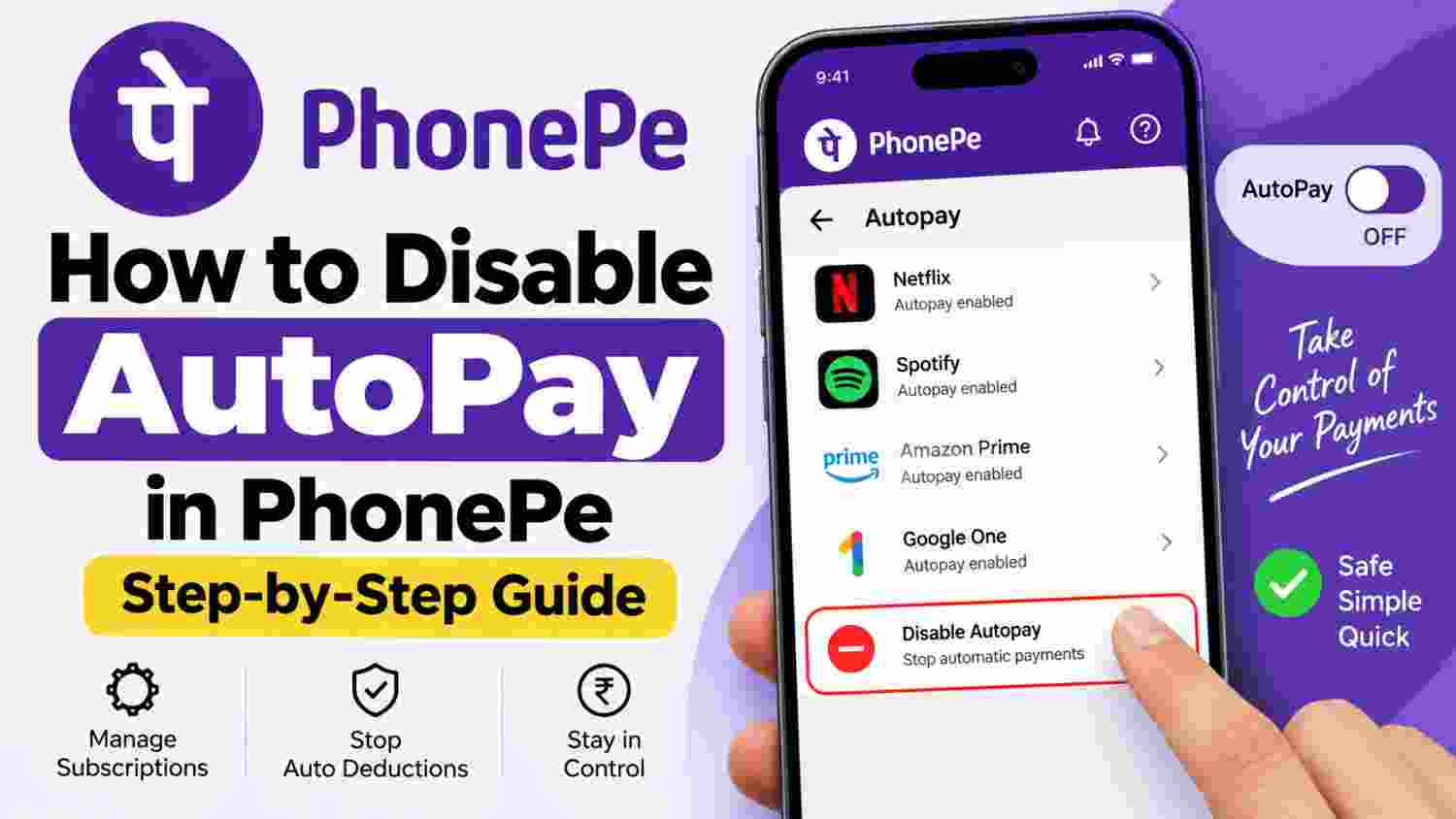
How to Disable AutoPay in PhonePe: Step-by-Step Guide
PhonePe AutoPay can make recurring payments convenient. It can automatically handle eligible subscriptions, bills, and other recurring payments without requiring you to make the payment manually every time.
However, you may eventually want to stop an AutoPay mandate. Perhaps you cancelled a subscription, no longer use a service, want to switch to manual payments, or simply found an AutoPay mandate that you do not recognize.
The good news is that you can manage your AutoPay mandates directly through the PhonePe app.
In this guide, we will explain how to disable AutoPay in PhonePe, where to find your active mandates, how to cancel or revoke an AutoPay, what happens after cancellation, and what you should do if you find an unfamiliar mandate.
Quick answer: Open PhonePe → tap your profile picture → go to Autopay Settings under Payment Settings → select the relevant AutoPay → choose the available cancellation, deletion, or revoke option → confirm the action.
What Is AutoPay in PhonePe?
AutoPay is a recurring-payment authorization that allows eligible future payments to be processed automatically according to the mandate you approved.
For example, you may use AutoPay for:
- Streaming subscriptions
- Utility bills
- Recurring service payments
- Certain other eligible recurring transactions
PhonePe provides an Autopay Settings section where users can view the AutoPay mandates associated with their account. PhonePe’s own help documentation confirms the path through the profile section of the app.
Before cancelling anything, check the merchant name, payment details, frequency, and other information carefully.
How to Disable AutoPay in PhonePe
The exact appearance of the PhonePe app can change with updates, and the available options may vary depending on the type of mandate. The general process is as follows.
Step 1: Open the PhonePe App
Open the PhonePe app on your smartphone.
Make sure you are logged into the PhonePe account where the AutoPay mandate was created.
Before proceeding, make sure you are using the official PhonePe application and not a link sent to you by someone else.
Step 2: Open Your Profile
From the PhonePe home screen, tap your profile picture.
This will open your account and payment-related settings.
PhonePe’s current help information directs users to the profile section to access their AutoPay details.
Step 3: Go to Autopay Settings
Look under the Payment Settings section and tap Autopay Settings.
You should now be able to see the AutoPay mandates connected to your PhonePe account.
Depending on how many recurring payments you have authorized, you may see multiple merchants or services listed.
Take a moment to review the list before selecting a mandate.
Step 4: Select the AutoPay You Want to Disable
Tap the AutoPay mandate that you want to stop.
Pay close attention to the merchant name and payment information, especially if you have several active subscriptions.
For example, you might have separate mandates for different subscriptions or recurring services.
Selecting the wrong mandate could stop a payment that you still need, so verify the details before continuing.
Step 5: Choose the Cancellation or Revoke Option
After opening the AutoPay details, look for the option available to stop the mandate.
Depending on the mandate and the current PhonePe interface, the option may be labelled something like:
- Cancel
- Delete
- Revoke
- Stop AutoPay
The exact wording may vary.
Select the appropriate option to continue.
Step 6: Confirm the Cancellation
PhonePe may display a confirmation screen before the mandate is cancelled.
Read the information carefully and confirm that you want to stop the AutoPay.
If PhonePe asks you to complete an additional authentication step, follow the instructions shown inside the official app.
Do not enter your UPI PIN or other sensitive information into a website, message, or screen provided by someone claiming to be PhonePe support.
Step 7: Verify That AutoPay Has Been Disabled
After completing the cancellation, return to Autopay Settings and check the status of the mandate.
Make sure the mandate no longer appears as active or that the app displays the relevant cancelled, revoked, or inactive status.
This final check is important because it gives you confirmation that the action was completed.
Can You Pause PhonePe AutoPay Instead of Cancelling It?
Yes, eligible AutoPay mandates may offer a Pause option.
PhonePe’s safety guidance explains that users can pause an AutoPay when they temporarily want to stop deductions and later resume the mandate.
Pausing may be useful if:
- You are temporarily not using a service.
- You are going on vacation.
- You want to stop payments for a short period.
- You expect to use the service again later.
If you have permanently stopped using the service, cancelling or revoking the mandate may make more sense.
The availability of pause and other actions can depend on the specific mandate.
What Happens After You Disable AutoPay?
Once an AutoPay mandate has been successfully cancelled or revoked, future automatic payments under that mandate should no longer be processed through it.
However, there is an important difference between cancelling an AutoPay mandate and cancelling the subscription itself.
For example, suppose you have a streaming subscription and its payment is connected to PhonePe AutoPay.
Disabling the payment mandate does not necessarily mean that your streaming account or subscription has been cancelled.
If you no longer want the service, check the service provider’s account or subscription settings separately.
This can help prevent confusion about whether you have stopped the payment method, the subscription, or both.
Will Cancelling AutoPay Refund a Previous Payment?
Not necessarily.
Cancelling an AutoPay mandate is primarily about stopping future automatic payments. It does not automatically mean that a payment that has already been completed will be reversed.
If a payment has already been processed, contact the relevant merchant or service provider and check the transaction details in PhonePe.
Do not assume that cancelling AutoPay will automatically create a refund.
What If Your Next AutoPay Payment Is Due Soon?
If you want to stop an upcoming recurring payment, do not wait until the last moment.
Open PhonePe → Profile → Autopay Settings and check the relevant mandate as soon as possible.
PhonePe says it provides a pre-debit notification for recurring AutoPay payments and notes that users may have an opportunity to delete the mandate after receiving the notification.
However, timing can depend on the payment and mandate.
After cancelling the AutoPay, always return to the settings and verify the status.
How to Check for an Unknown AutoPay in PhonePe
If you receive a notification about a recurring payment that you do not recognize, do not immediately approve it.
Instead:
- Open the official PhonePe app.
- Tap your profile picture.
- Open Autopay Settings.
- Review your active mandates.
- Check the merchant name and payment details.
- Identify any mandate you do not recognize.
- Delete or cancel the suspicious mandate if appropriate.
PhonePe specifically recommends checking Profile → Autopay Settings and deleting an unrecognized mandate.
Be Careful With Fake AutoPay Requests
AutoPay can be useful, but scammers may try to misuse payment and subscription requests.
Be especially careful if someone tells you that you must approve an AutoPay request to:
- Receive a refund
- Receive prize money
- Complete a KYC update
- Receive a payment
- Unlock an account
- Receive cashback
- Fix a supposed payment problem
PhonePe warns about fraudulent subscription mandates and says that users should carefully verify recurring-payment requests.
Never enter your UPI PIN to receive money
A particularly important safety rule is this:
You do not need to enter your UPI PIN to receive money.
If someone tells you to approve a payment or enter your UPI PIN to receive a refund, prize, cashback, or incoming payment, stop and verify the request first.
What If You Cannot Find the Cancel Option?
If you open an AutoPay mandate but cannot find a cancellation option, do not assume that the payment cannot be stopped.
The available controls can depend on the mandate type, merchant, and current PhonePe interface.
Try these steps:
1. Check the mandate details
Open the AutoPay and review all available options.
2. Check the merchant’s subscription settings
Some subscriptions may also have their own cancellation controls.
3. Update the PhonePe app
Make sure you are using the latest official version available for your device.
4. Contact PhonePe through the app
Use the official Help section inside PhonePe if you need assistance.
Avoid calling phone numbers or opening links sent to you by unknown people claiming to be PhonePe representatives.
How to Avoid Unwanted AutoPay Payments
A few simple habits can help you keep control of recurring payments.
Review your AutoPay mandates regularly
Check your AutoPay settings occasionally and remove mandates for services you no longer use.
Read payment notifications
Pay attention to notifications about upcoming recurring payments.
Check the merchant
Before approving a mandate, make sure you recognize the merchant and understand why the payment is being requested.
Cancel unused subscriptions
If you stop using a service, review both the subscription and its associated payment mandate.
Never approve unknown requests
If you do not understand a recurring-payment request, do not approve it until you have verified it.
Keep your payment app updated
Using the latest official version can help ensure you have access to the current security features and interface.
Frequently Asked Questions
How do I disable AutoPay in PhonePe?
Open PhonePe, tap your profile picture, select Autopay Settings under Payment Settings, choose the relevant mandate, and use the available cancellation, deletion, or revoke option.
Can I cancel PhonePe AutoPay without cancelling my subscription?
Yes. An AutoPay mandate and the underlying subscription can be separate. If you want to completely stop a service, check the service provider’s subscription settings as well.
Can I pause PhonePe AutoPay?
Eligible AutoPay mandates may provide a Pause option. PhonePe says pausing can temporarily stop deductions and allow the mandate to be resumed later.
Why can’t I see the option to cancel AutoPay?
The available options can vary depending on the mandate and merchant. Check the mandate details, review the merchant’s subscription settings, and contact PhonePe through its official Help section if necessary.
How do I know that AutoPay has been cancelled?
Return to Autopay Settings and check the mandate status. Make sure it is no longer shown as active or displays the appropriate cancelled or revoked status.
Will cancelling AutoPay cancel my subscription?
Not necessarily. Cancelling the payment mandate does not automatically mean that the underlying subscription has been cancelled. Check the merchant’s account settings separately.
Can I stop an AutoPay payment that has already been processed?
Cancelling the mandate generally affects future automatic payments. It does not automatically reverse a payment that has already been completed. For transaction-specific issues, check the payment details and contact the relevant merchant or official PhonePe support.
Final Thoughts
Disabling AutoPay in PhonePe is usually a straightforward process.
Start by opening:
PhonePe → Profile → Autopay Settings
Then select the relevant mandate and use the cancellation, deletion, or revoke option available for that mandate. After completing the process, return to your AutoPay settings and verify the status.
Remember that stopping an AutoPay mandate is not always the same as cancelling the associated subscription. If you no longer want a service, check both the payment mandate and the service provider’s subscription settings.
Most importantly, be careful with unexpected recurring-payment requests. Never approve an AutoPay mandate that you do not understand, and never share your UPI PIN with someone claiming that it is required to receive money.
PhonePe can update its app interface and payment controls over time, so the exact button names or screen layout may change. Always follow the instructions shown in the official PhonePe app and verify the final status after making a change.